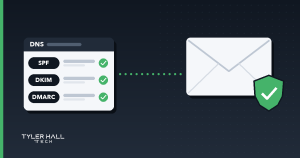
You send a quote to a new customer. They never answer. A week later you call, and they find your email sitting in their spam folder. If that has happened to you more than once, the problem usually isn’t what you wrote. It’s that the receiving mail server couldn’t confirm the email really came from you.
I’m Tyler Hall, and setting up domains, DNS and business email is part of the IT work I do for small businesses in Northern Colorado. This post explains, in plain English, the three DNS records that decide whether Gmail, Yahoo and Outlook trust your mail: SPF, DKIM and DMARC. You don’t need to become an email expert. You just need to know what they are, how to check them, and when to ask for help.
Why this matters more now
In February 2024, Google and Yahoo started enforcing new rules for anyone sending email to their users. Every sender to a personal Gmail account needs at least SPF or DKIM set up. Anyone sending 5,000 or more messages a day to Gmail or Yahoo addresses needs all three: SPF, DKIM and DMARC, plus a one-click unsubscribe link on marketing email and a low spam complaint rate. Microsoft announced similar rules for Outlook.com in 2025.
Most small businesses don’t send 5,000 emails a day. But your newsletter tool, your CRM, your booking software and your invoicing app may all be sending email “from” your domain, and the mail servers on the other end judge all of it together. A domain with no DMARC record and a half-finished SPF record looks a lot like a domain someone is spoofing.
SPF: who is allowed to send as you
SPF (Sender Policy Framework) is a TXT record in your domain’s DNS that lists the services allowed to send email for your domain. If you use Google Workspace, it might look like this:
v=spf1 include:_spf.google.com ~all
If you use Microsoft 365, the include is spf.protection.outlook.com instead. Every other service that sends as you (Mailchimp, your CRM, your website’s contact form, QuickBooks invoices) may need its own entry. Their help docs will tell you exactly what to add.
Common SPF mistakes:
- Two SPF records. A domain can only have one. If you add a second one for a new tool instead of merging it into the first, both can fail.
- Too many lookups. SPF allows at most 10 DNS lookups. Stack enough
include:entries and the record breaks without telling you. - Old services left in. If you stopped using a tool years ago, take it out.
DKIM: a signature on every message
DKIM (DomainKeys Identified Mail) adds a digital signature to each email you send. The receiving server looks up a public key in your DNS and checks that the signature matches, which proves the message came from an authorized sender and wasn’t changed on the way.
You don’t write DKIM records by hand. Your email provider generates them. In Google Workspace it’s in the Admin console under Gmail authentication. In Microsoft 365 it’s in the Defender portal. Each marketing or CRM tool that sends as your domain usually has its own DKIM setup too, often called “domain authentication.” The step people skip is the last one: after you add the DNS record, you have to go back to the provider and turn signing on.
DMARC: what to do when a check fails
DMARC (Domain-based Message Authentication, Reporting and Conformance) ties SPF and DKIM to the address people actually see in the From line. It tells receiving servers what to do with mail that fails, and where to send reports about it. It lives in a TXT record at _dmarc.yourdomain.com. A safe starting point looks like this:
v=DMARC1; p=none; rua=mailto:an-address-you-check
The rua part is where the daily reports go. Use a mailbox you actually read, or a free DMARC report service that turns them into something readable.
The p value is the policy:
p=none: don’t block anything, just send me reports. Start here.p=quarantine: send failing mail to spam.p=reject: refuse failing mail outright.
The goal is to move from none to quarantine or reject once the reports show all your real mail passing. That’s what stops strangers from sending phishing email that looks like it came from your business. Jumping straight to reject before you know every tool that sends as you is how invoices and password resets quietly stop arriving.
How to check your own domain in five minutes
- Send an email from your business address to a personal Gmail account.
- Open it in Gmail on a computer, click the three-dot menu, and choose Show original.
- Near the top you’ll see SPF, DKIM and DMARC, each marked PASS, FAIL or missing.
- Do the same with an email sent by your newsletter tool, your CRM and your website’s contact form. Each one can pass or fail on its own.
Free lookup tools from companies like MXToolbox will also show you your SPF and DMARC records if you type in your domain. If everything says PASS, you’re in good shape. If anything says FAIL, or DMARC is missing, it’s worth fixing.
What it won’t fix
Authentication proves the email is really from you. It doesn’t make people want it. If you’re emailing lists that never signed up, sending the same message over and over, or your subject lines read like spam, you’ll still land in the junk folder. It also won’t help if your domain or sending IP is already on a blocklist. That needs its own cleanup first.
When to get help
If you’re comfortable in your domain’s DNS settings and you only use one email provider, you can probably handle this yourself in an afternoon. It gets harder when:
- Your DNS is in one place, your website host is in another, and nobody remembers the login for either.
- Several tools send email as your domain and you’re not sure which ones.
- You’re moving email providers, or moving your domain to Cloudflare or a new host.
- Someone is already spoofing your domain, and customers are getting fake emails “from” you.
A mistake in DNS can take down your email or your website, so if any of that sounds familiar, it’s worth having someone look before you start editing records.
Need a hand with your business email?
Domain, DNS and business email setup is one of the IT services I offer to businesses across Northern Colorado, along with networks, troubleshooting and the rest. You can see the full list on my services page. If your email keeps landing in spam, request a consultation and we’ll sort out what’s going on. The first consultation and quote are free.